Title here
Summary here
Visual Studio Code is one of the best source code editors. Features include support for debugging, syntax highlighting, intelligent code completion, snippets, code refactoring, and embedded Git.
You can run Visual Studio Code in your local computer and connect to a remote Jupyter Kernel running in the server.
All the computation and data access will be then performed remotely while you write your notebooks in your computer.
You need your unique JupyterLab access token. This is available in your Profile page. Keep this token safe, consider it as a password to access your Jupyter.
Visual Studio Code supports connecting to a remote notebook server, and we can use that to connect to our JupyterHub.
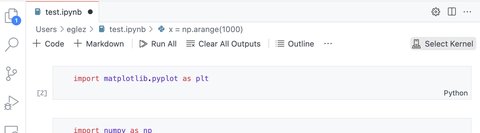
Open a local Jupyter notebook (a file with a .ipynb extension) and click on Select Kernel at the top right of the window:
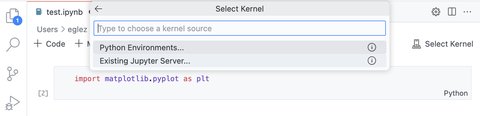
In the new menu select Existing Jupyter server...
Then enter the address of your Jupyter server as:
https://darkroom.ast.cam.ac.uk/user/<username>/<server-name>/?token=<token>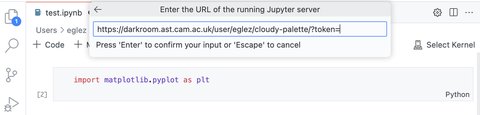
If the connection is succesful you will then be able to select the remote kernel to use to run your notebook:
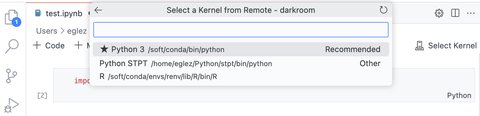
The kernel for your notebook should now live on your JupyterHub! You can verify this by running !hostname, which should return the hostname of your remote JupyterHub server instead of your local hostname. You can also try importing libraries that are in the remote JupyterHub server, but not your local file system.